
AI rendering · Photo
Render from a photo, with AI
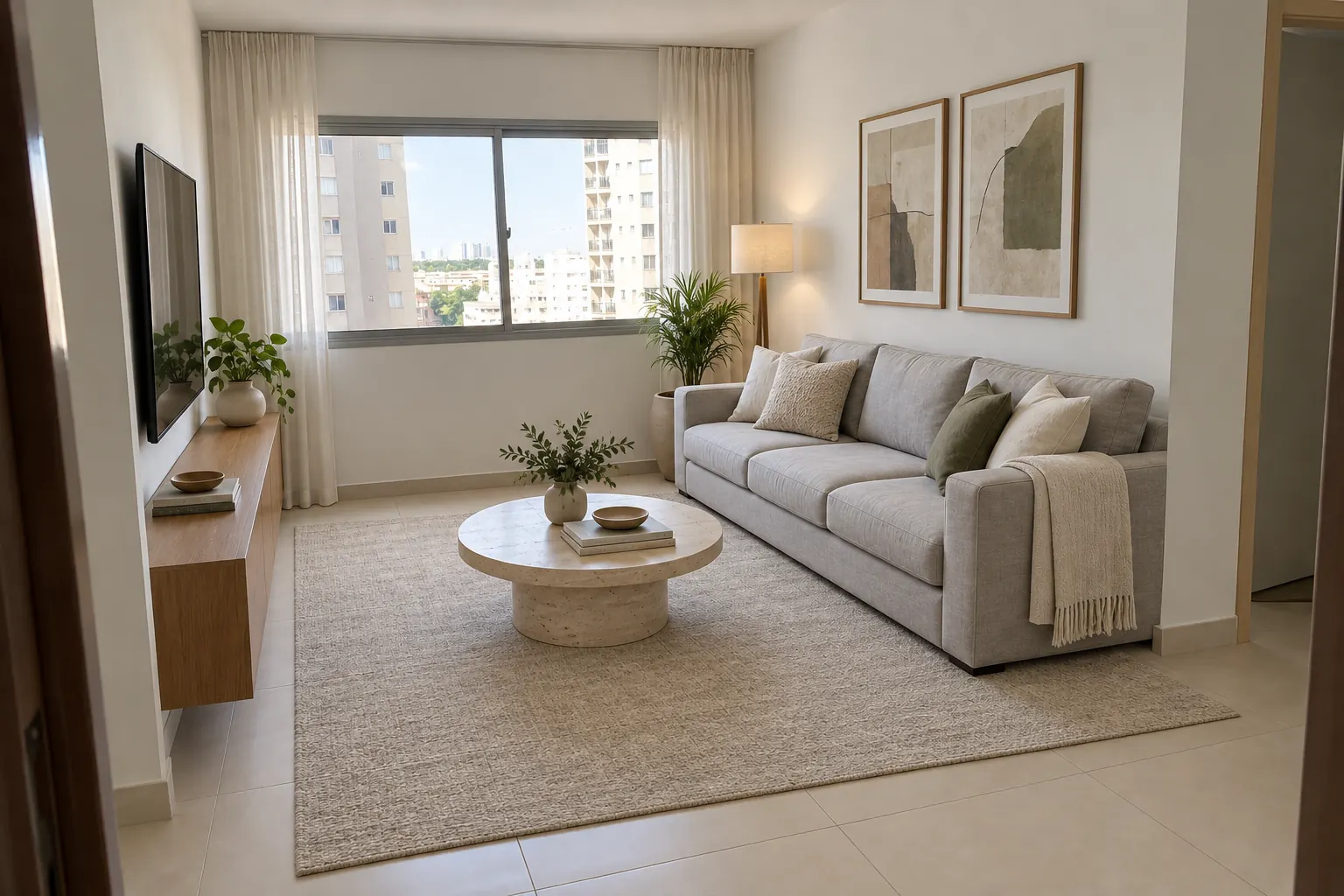
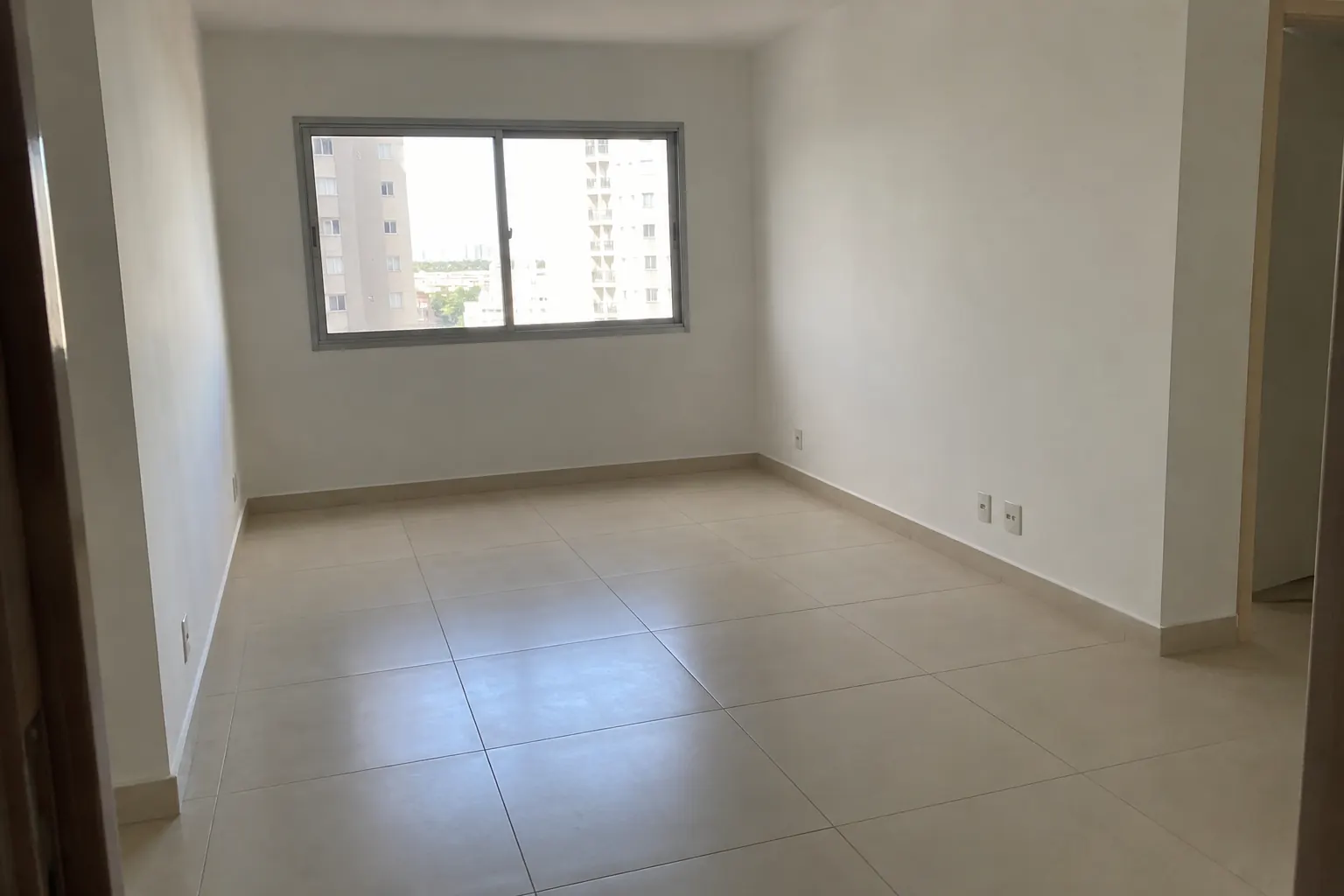
A photo of the room as it is today is already a starting point. Arch shows the same space with the change you ask for, furnished or as a video.
What you can do with a photo
When the AI sees that the image is a photo of a space that exists, it offers three paths:
- “Change something”: write what to change and, if you like, mark the spot on the photo with the pencil. Renovations and material swaps go here: “light porcelain tile floor”, “sage green wall”, “white quartz countertop”.
- “Furnish it”: clears the clutter and adds furniture, even in a space that is already furnished.
- “Video”: first, Arch asks whether you want to furnish the space and animate it, or animate the photo as it is.
How to take the photo for a good result
Shoot with the phone held horizontally, at eye level, with the room well lit. Avoid the phone’s extreme ultra-wide lens, which bends walls. Include the floor, the ceiling and the openings.
A photo of a screen, a chat screenshot or an image with black borders also works: the AI notices and crops the part that matters.
What stays the same
Walls, windows, doors and the framing of the photo are kept. What changes is what you asked for. For renovations, also write what must not change, for example “keep the window and the floor”.
If the change landed in the wrong place, mark the spot with the pencil and ask again: the marking tells the AI where to work.
One photo per angle
Each photo gives its own result. To show a whole renovation, photograph the room from two or three angles, always in the same light, and write the same request on each, so the materials match across the images.
Prefer daylight. If the room is dark, turn the lights on before shooting: strong shadows and black corners can be read as stains or objects.
Clear away what should not appear. “Furnish it” already clears the clutter; with “Change something”, whatever is in the photo tends to stay there.
When showing the client, compare in Arch the photo of the current state with the result.
What it costs
To try it, a new account gets 2 free renders (350 credits), no card; video comes with a plan. On the first subscription, plans start with 7 free days, and the first charge is on day 8.
Frequently asked questions
Does a phone photo work?
Yes. An ordinary phone photo is enough; just avoid the extreme ultra-wide lens.
How do I ask for a renovation?
In “Change something”, write the change, such as the floor or the wall color, and mark the spot with the pencil if you like.
Does the AI keep the walls and windows?
Yes, the geometry and framing of the photo are kept. Small details can change; compare with the photo.
Does it work for outdoor areas?
Yes. Photos of balconies, backyards and facades work too.