
AI rendering · Promob and cabinetry
Promob rendering with AI for cabinetry
From a Promob image, or even a sketch of the furniture, the AI makes a realistic render of the fitted room, to show the client before production.
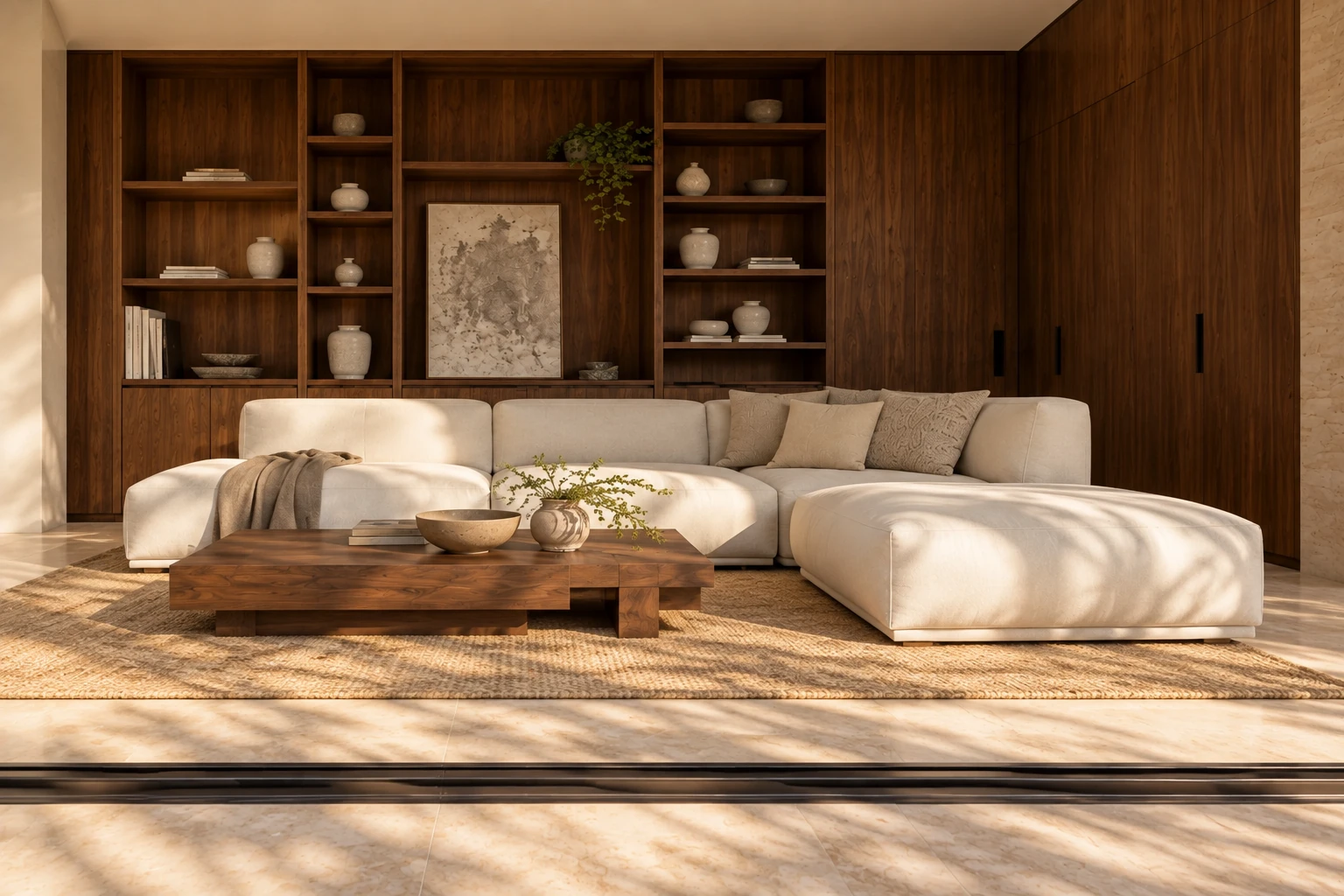
The Promob image to upload
You can upload a screenshot of the 3D view of the design or the render Promob made itself. Arch does not read the Promob file, only the image, so any version works.
- Frame the whole unit, without cutting off doors, drawers or panels.
- A front view, or one slightly from the side, shows the modules best.
- Hide dimensions, labels and helper elements.
When the Promob render comes out dark or flat
A render that comes out black, dark or looking like a drawing usually has to do with the scene lighting and the render settings. Before spending hours adjusting it, you can upload the image you already have.
The AI says how it read the image. If it reads it as a finished render and you want light and materials redone, switch the reading to “3D model or sketch”: then “Just the render” appears. Choose the time of day, for example Morning for a bright kitchen, and write the finishes in “Anything to ask for?”.
Check the modules in the result: number of doors, divisions and handles. If something changed, ask for another version of the same view.
From a furniture sketch to the fitted room
If you only have a drawing of the furniture, by hand or on graph paper, Arch recognizes a furniture sketch and builds the unit inside a complete room. See also the sketch to render guide.
The request comes pre-filled with base materials, such as oak MDF with matte off-white doors and black profile handles, and you swap them with one tap: light wood, white lacquer, sage green or a recessed handle.
Showing it to the client
Gather the renders into a presentation with your cabinetry brand’s logo. The client opens the link on the phone and approves each room or asks for changes. For social media, a short video of the room comes from the render.
What it costs
To try it, a new account gets 2 free renders (350 credits), no card; video comes with a plan. On the first subscription, plans start with 7 free days, and the first charge is on day 8.
Frequently asked questions
Does it work with a Promob render?
Yes. Upload the render or a screenshot of the 3D view. To redo light and materials, switch the reading to “3D model or sketch” and choose “Just the render”.
Does the AI change the furniture modules?
It keeps the geometry of the image, but it can slip on small details, such as the number of doors or a handle. Check before showing it to the client.
Can I choose the finish?
Yes. Write the material in “Anything to ask for?” or, on a furniture sketch, tap the suggested finish.
Do I need to install anything on my computer?
No. It runs in the browser, on the phone too.