
AI rendering · SketchUp
AI rendering from SketchUp
Make a render from a screenshot of your SketchUp scene, without setting up materials, lights or a render engine. You upload the image of the view and choose the light; the rest happens in the browser.
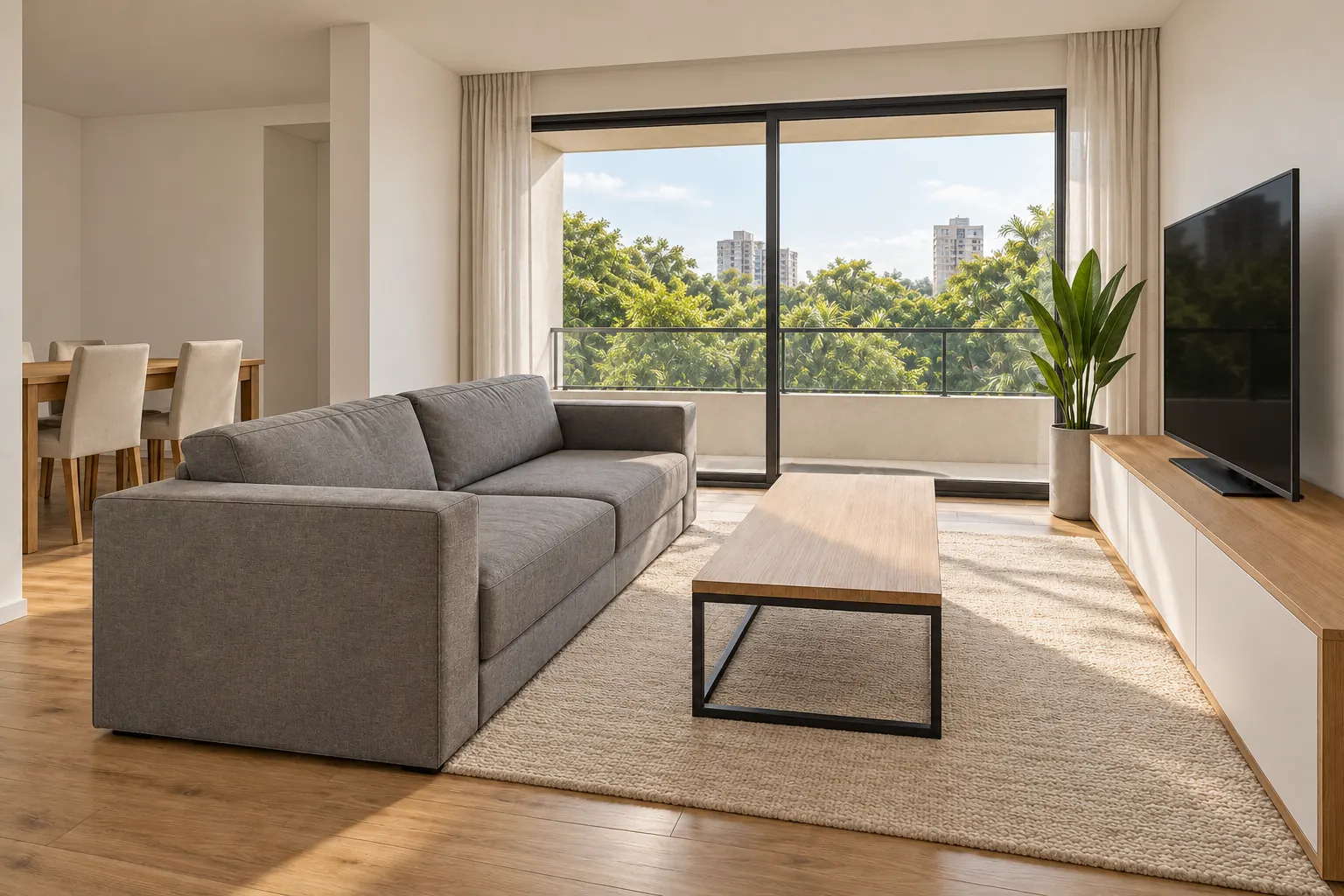
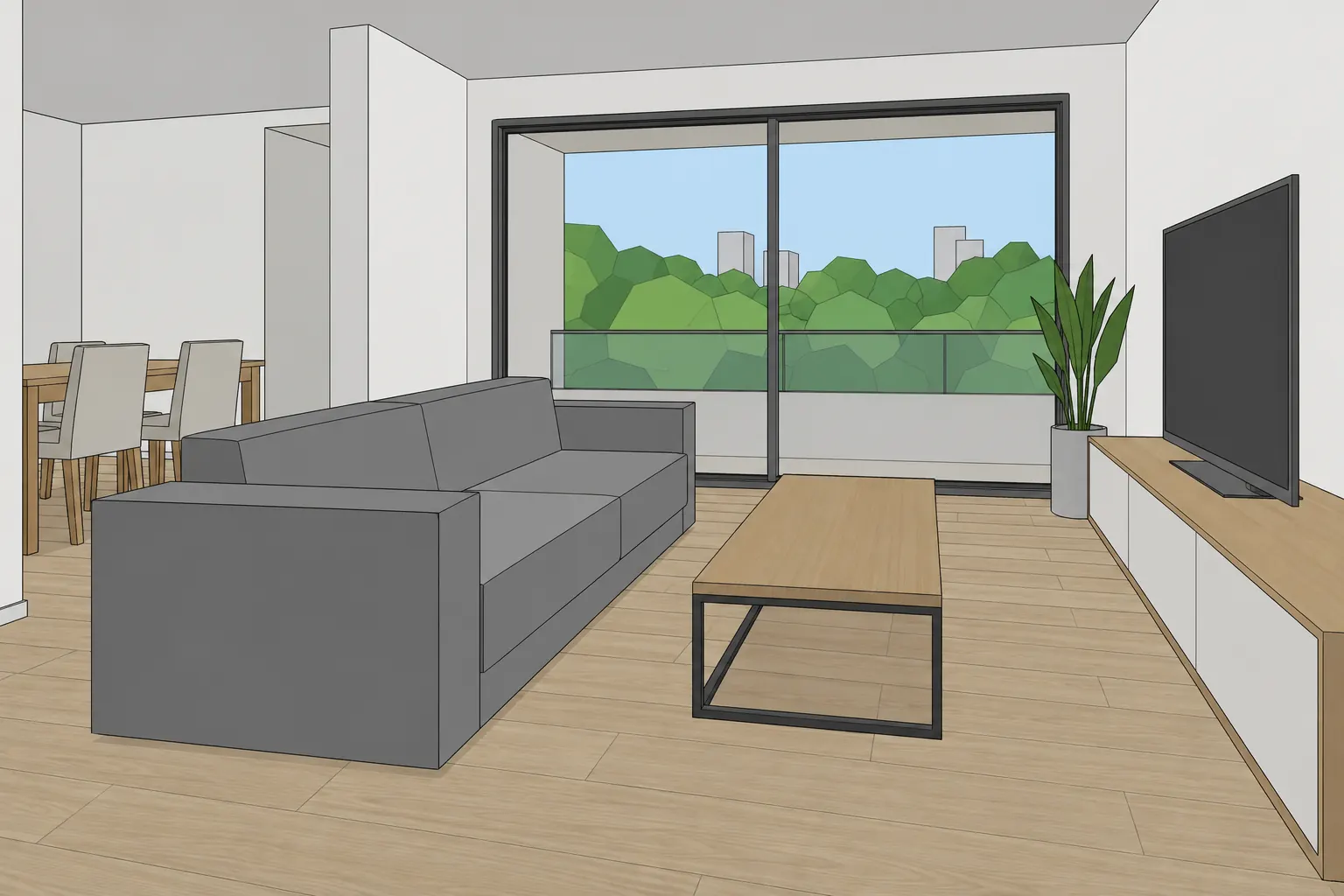
How to get the view out of SketchUp
Save a scene for each view that goes into the presentation. The scene keeps the camera position, so you can repeat the same view when the design changes.
To export, use File › Export › 2D Graphic and save as PNG or JPG. A screenshot also works: the program bars are detected and the view is cropped.
- Hide axes, guides and objects that are not part of the design.
- Keep walls, openings, the ceiling and the furniture that needs to show visible.
- Avoid a very wide field of view, which stretches the furniture.
- Materials applied in the model help the AI keep your choices, but they are not required.
Inside SketchUp or in the browser
Some extensions make AI images inside SketchUp. Arch works outside the program, from the image. You do not depend on the SketchUp version or on your computer, and you use the same path for views from Revit and Archicad, photos and sketches.
After the render comes the client presentation, with a link, PDF and PPTX, made from the same images.
Bare model or model with materials
With materials applied, the AI starts from them: the oak stays light wood, the countertop stays stone. A bare model with only white faces also works; then the AI suggests finishes that suit the room.
If you already know the finish, write it in “Anything to ask for?”, for example “light porcelain tile floor, oak cabinetry”. If a piece of furniture changed shape in the result, ask for another version of the same scene before moving the camera.
Sectioned model and facade
If the scene shows the room cut open, seen from outside, Arch asks what the ceiling is like and photographs the same room from inside, enclosed and finished, as built. A bare facade becomes the finished house seen from the sidewalk, and from it, a video.
What it costs
To try it, a new account gets 2 free renders (350 credits), no card; video comes with a plan. On the first subscription, plans start with 7 free days, and the first charge is on day 8.
Frequently asked questions
Do I need a plugin for AI rendering from SketchUp?
No. You export the view as an image, or take a screenshot, and upload it in the browser.
Does the free version of SketchUp work?
Yes. Arch does not read the model file, only the image of the view, so any version works.
Does the render stay true to the scene?
The camera and geometry are kept, and light and materials are redone. Small details can change; compare with the scene before sending.
Can I make a video from the scene?
Yes. Choose “Render + video” and the move: Approach, Side glide, Orbit or Furnishing for interiors, or Orbit, Drone and Construction for facades. With “Custom”, you draw the camera path over the image.